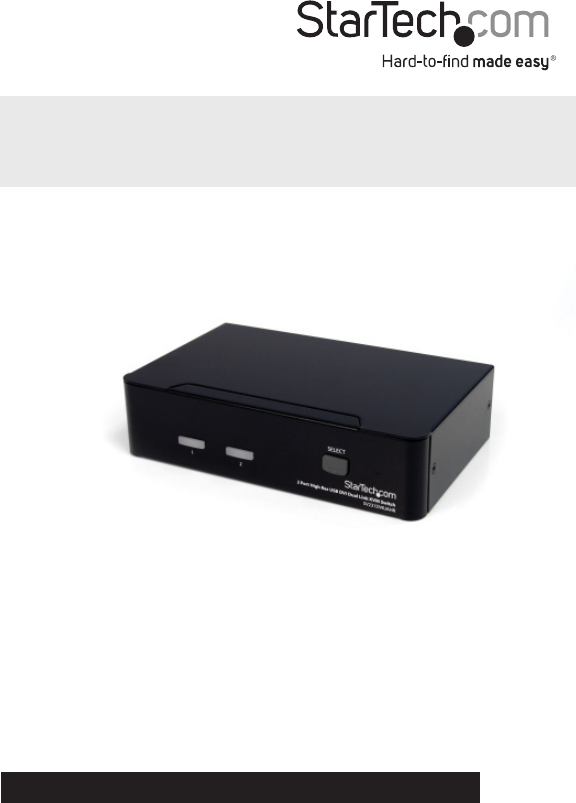
Startechcom SV231DVIUAHR User Manual
Browse online or download User Manual for Computer Accessories Startechcom SV231DVIUAHR. StarTech.com SV231DVIUAHR User Manual
- Page / 13
- Table of contents
- BOOKMARKS

Summary of Contents
Manual Revision: 09/19/2014DE: Bedienungsanleitung - de.startech.comFR: Guide de l'utilisateur - fr.startech.comES: Guía del usuario - es.startec
Instruction Manual7Change Leading HotkeyThe default leading hotkey sequence involves pressing the left <CTRL> twice in succession (e.g. left <
Instruction Manual8SpecicationsNumber of Ports 2Computer Connectors (per port)1 x USB type B female1 x 29-pin DVI female2 x 3.5mm Audio femaleConsole
Instruction Manual9Technical SupportStarTech.com’s lifetime technical support is an integral part of our commit-ment to provide industry-leading solut
Hard-to-nd made easy. At StarTech.com, that isn’t a slogan. It’s a promise.StarTech.com is your one-stop source for every connectivity part you need.
FCC Compliance StatementThis equipment has been tested and found to comply with the limits for a Class B digital device, pursuant to part 15 of the FC
Instruction ManualiTable of ContentsIntroduction ...
Instruction Manual1Introduction The SV231DVIUAHR 2-Port High Resolution Dual-Link DVI USB KVM Switch provides simple, yet comprehensive control of 2 d
Instruction Manual2InstallationNOTE: Prior to the installation, please power o all devices that will be connected to this system.Ensure that all devi
Instruction Manual3Front ViewRear View
Instruction Manual4Console ConnectionBefore installation, ensure that all devices and computers to be connected to the KVM switch are powered o.1. C
Instruction Manual5OperationFront PanelOn-line LED / Selected LEDWhen the LED turns green, the connected computer is powered-on. When a computer is s
Instruction Manual6To start Auto Scan:Left <CTRL> + Left <CTRL> + <F1>To abort the Auto Scan mode, press the left <CTRL> key t
Related products and manuals for Computer Accessories Startechcom SV231DVIUAHR
 (15 pages)
© 2020, manymanuals.com. All rights reserved. | 0.078 s |
 Manymanuals.com
 Manymanuals.de
 Manymanuals.fr
 Manymanuals.it
 Manymanuals.pl
 Manymanuals.cz
 Manymanuals.es
 Manymanuals-pt.com
Comments to this Manuals