Startechcom SATDOCKU2EEU User Manual
Browse online or download User Manual for Computer Accessories Startechcom SATDOCKU2EEU. StarTech.com SATDOCKU2EEU User Manual [de] [fr] [en]
- Page / 11
- Table of contents
- BOOKMARKS
Rated. / 5. Based on customer reviews

Manual Revision: 03/28/2012
For the most up-to-date information, please visit: www.startech.com
DE: Bedienungsanleitung - de.startech.com
FR: Guide de l'utilisateur - fr.startech.com
ES: Guía del usuario - es.startech.com
IT: Guida per l'uso - it.startech.com
NL: Gebruiksaanwijzing - nl.startech.com
PT: Guia do usuário - pt.startech.com
SATADOCKU2E
SATDOCKU2EGB
SATDOCKU2EEU
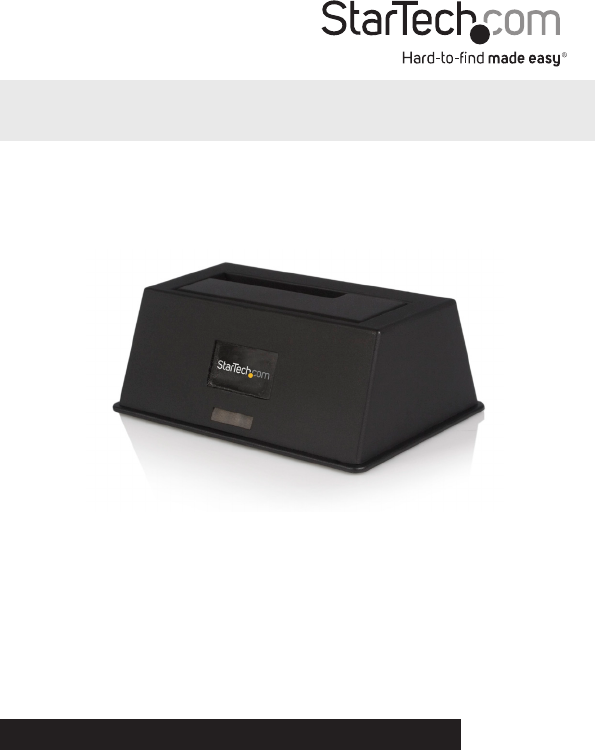
USB 2.0/eSATA to 2.5”/3.5” SATA HDD Dock
*actual product may vary from photos
Summary of Contents
Page 1 - SATDOCKU2EEU
Manual Revision: 03/28/2012For the most up-to-date information, please visit: www.startech.comDE: Bedienungsanleitung - de.startech.comFR: Guide de l&
Page 2 - FCC Compliance Statement
Instruction Manual7Technical SupportStarTech.com’s lifetime technical support is an integral part of our commitment to provide industry-le
Page 3 - Table of Contents
Hard-to-nd made easy. At StarTech.com, that isn’t a slogan. It’s a promise.StarTech.com is your one-stop source for every connectivity part y
Page 4 - Introduction
Instruction ManualFCC Compliance StatementThis equipment has been tested and found to comply with the limits for a Class B digital dev
Page 5 - Disk Installation
Instruction ManualiTable of ContentsIntroduction ...1Features
Page 6 - Instruction Manual
Instruction Manual1Introduction This eSATA/USB to SATA External HDD Dock Adapter provides immediate, swappable access to any 2.5in or 3.5in SATA (S
Page 7
Instruction Manual2Rear ViewDC Power AdaptereSATA PortOn/O SwitchUSB PortDisk Installation1. Connect the Dock to an available power outlet, using th
Page 8
Instruction Manual3Preparing the Hard Drives for Use1. With the hard drives inserted and the dock powered on, right click on the My Computer icon and
Page 9 - Specications
Instruction Manual44. Select the partition type you wish to create by clicking on Primary or Extended, as appropriate. When you have made your select
Page 10 - Warranty Information
Instruction Manual57. A notication window will appear indicating that you have successfully completed the New Partition Wizard. Click Finish to comm
Page 11
Instruction Manual610. To access your newly partitioned drive(s), open My Computer. Your drive(s) should be displayed below the heading Ha
Related products and manuals for Computer Accessories Startechcom SATDOCKU2EEU
 (11 pages)
© 2020, manymanuals.com. All rights reserved. | 0.089 s |
 Manymanuals.com
 Manymanuals.de
 Manymanuals.fr
 Manymanuals.it
 Manymanuals.pl
 Manymanuals.cz
 Manymanuals.es
 Manymanuals-pt.com
Comments to this Manuals